AI Summary Button in Webflow: Implementation Guide
TL;DR
Most websites explain too much and clarify too little. An AI summary button Webflow setup fixes that by letting users and AI generate instant, structured understanding of your pages. Page-level buttons give you control; footer-level buttons give you scale. This only works if your content is already clear, otherwise, it exposes gaps. Implemented properly, it strengthens AEO, improves buyer confidence, and supports conversion without redesigning anything.
How to implement an AI summary button in Webflow
Implementing an AI summary button Webflow setup is one of the fastest ways to improve Answer Engine Optimization (AEO), increase user clarity, and guide high-intent visitors toward conversion, without redesigning your entire site.
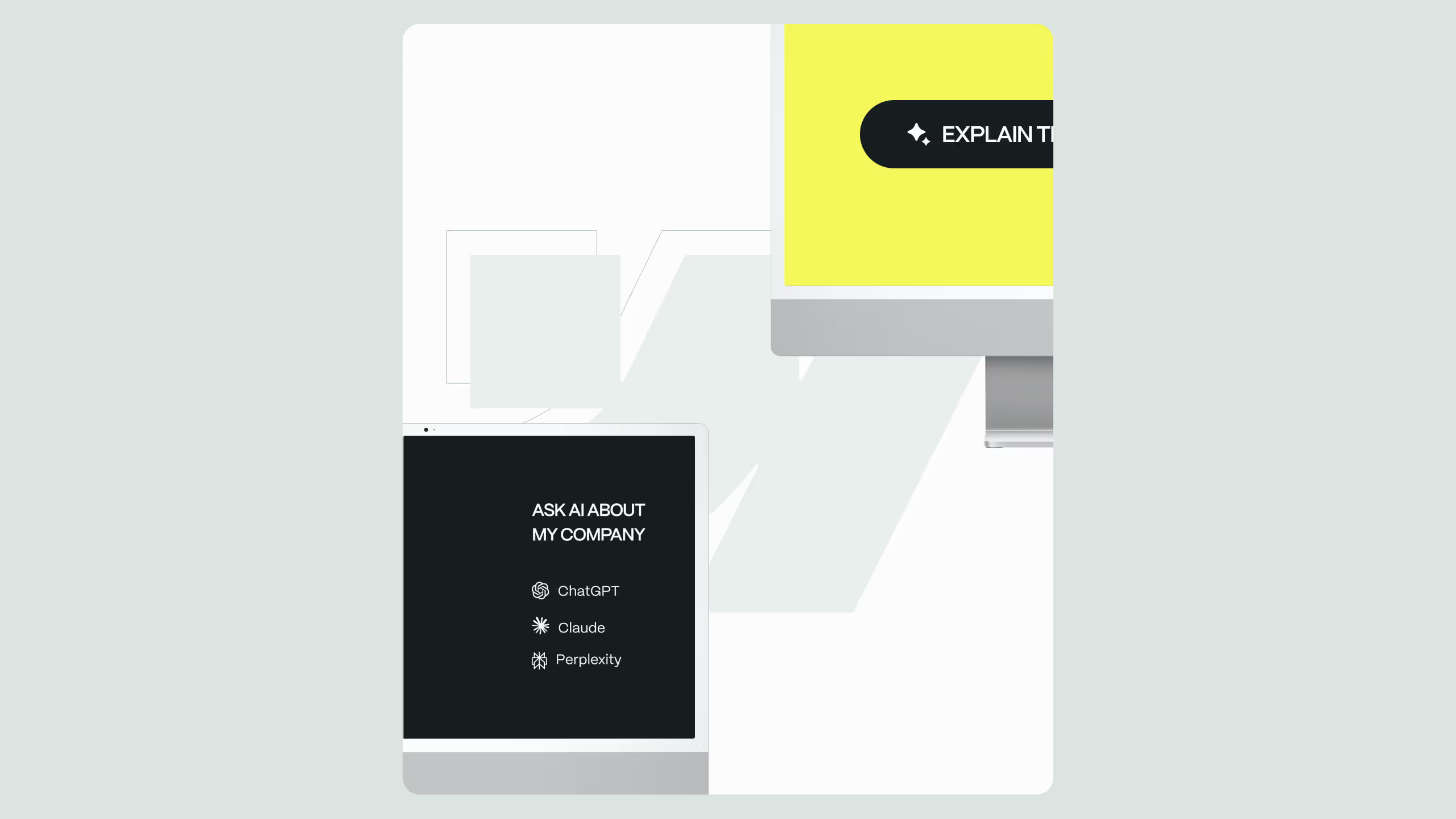
Instead of guessing what your company does, visitors (and AI tools like ChatGPT, Perplexity, or Gemini) can instantly generate a structured summary of your page, your pricing, or your services, directly from your website.
This guide walks you through two production-ready methods:
- Page-level AI summary buttons
- Global footer AI summary buttons (recommended for scale)
Why an AI summary button matters
At the bottom of the funnel, users don’t want more content, they want confirmation.
An AI summary button Webflow setup helps when:
- A visitor wants a quick “what do you actually do?” recap
- A buyer wants to validate pricing, scope, or positioning
- An AI assistant needs structured, explicit signals to cite your brand
This is especially powerful on:
- About pages
- Pricing pages
- Service pages
- Long-form case studies
If you already invested in SEO, CRO, and structured content, this feature multiplies its impact.
Option 1: Page-level AI summary button in Webflow
This approach gives you full control per page and is ideal when you want different summary prompts for different contexts (e.g. pricing vs services).
Step-by-Step: Page-Level Implementation
1. Create and Style the Button
- Add a Button or Link Block
- Style it normally (no special requirements)
- Give it a unique ID
Example: "ai-summary-btn"
2. Add a Code Embed block
- Place a Code Embed element anywhere on the page
- Paste the script you receive after signing up via the form (on the right side of your tool)
3. Match the button ID inside the script
Inside the script, update the selector to match your button ID
4. Customize the prompt (critical for AEO)
This is where most people mess up.
Bad prompt:
“Summarize this”
Good prompt:
“Summarize what this company does, who it’s for, key differentiators, and pricing context. Include 5 bullet takeaways and a one-sentence TL;DR.”
You control:
- What is summarized
- How structured the answer is
- Whether it supports AEO or just looks cool
5. Publish
Once published, the AI summary button Webflow setup is live for that page only.
Option 2: Global footer AI summary button (Recommended)
This is the scalable and cleaner solution.
Instead of repeating scripts across pages, you load it once, and it works everywhere.
Step-by-step: Footer implementation
1. Create the button in your footer
- Add a button or link inside your global footer
- Assign a global ID: "ai-summary-footer"
2. Go to Project Settings → Custom Code
Navigate to:
Project Settings → Custom Code → Footer Code
3. Paste the footer script
Use the script provided after signup (footer version).
4. Publish once, works everywhere
This AI summary button Webflow implementation now applies across:
- Blog pages
- CMS pages
- Static pages
- Landing pages
AEO best practices for AI summary buttons
If you skip this, you’re wasting the feature.
What must be true for this to work
- Your page clearly answers who, what, for whom, and why
- Headings are structured (H1–H3)
- Pricing and services are explicit
- FAQs exist where relevant
This is why the AI summary button Webflow setup works best alongside:
- FAQ schema
- LLM info pages
- Clean service architecture
(If you’re already doing Webflow SEO or Webflow AEO work, this compounds fast.)
Internal use cases that convert
Strategic placements that actually drive leads:
- About page → “Explain [company name]”
- Pricing page → “Explain pricing with AI”
- Case study → “Summarize results and outcomes”
- Services → “Explain what [company name} does”
This pairs naturally with Webflow enterprise builds, WordPress to Webflow migration pages, and pricing explainers, all high-intent pages.
.svg)
.svg)