How to Use Webflow for Building Out a Resource Center

TL;DR
Building a resource center using Webflow for building out a resource center combines visual design control with structured CMS collections to create scalable content libraries that marketing teams can manage independently. Success requires thoughtful collection architecture using reference fields for taxonomy management, effective filtering through tools like Finsweet CMS Filter, and clear content governance processes that maintain quality as libraries grow to hundreds or thousands of resources. Unlike WordPress or headless CMS platforms, Webflow empowers non-technical marketers to publish and iterate on content while maintaining the performance and SEO standards required by enterprise organizations. Strategic implementation of gating, analytics integration, and progressive enhancement ensures resource centers support business goals from lead generation to customer education.
How to Use Webflow for Building Out a Resource Center
Marketing teams at B2B SaaS companies face a persistent challenge: how do you organize hundreds of educational assets, ebooks, case studies, webinars, guides, into a resource center that users can actually navigate? Most platforms force you to choose between design control and content management flexibility. Webflow for building out a resource center solves this by combining visual design capabilities with a structured CMS that marketing teams can manage independently.
Unlike WordPress, which separates design from content management, or headless CMS platforms that require developer involvement for every layout change, Webflow provides a middle path. You build collection structures once, design templates visually, and empower non-technical team members to publish and update resources without touching code or waiting for developer availability.
This guide walks through the complete process of building a production-ready resource center in Webflow, from collection architecture through filtering implementation and ongoing content governance. Whether you're migrating from an existing platform or building from scratch, these frameworks reduce launch timelines while creating systems that scale as your content library grows.
What makes resource centers effective? They reduce support volume through self-service content, nurture prospects with educational materials, and demonstrate domain expertise that builds trust before sales conversations begin.
Understanding Webflow CMS Collections for Resource Centers
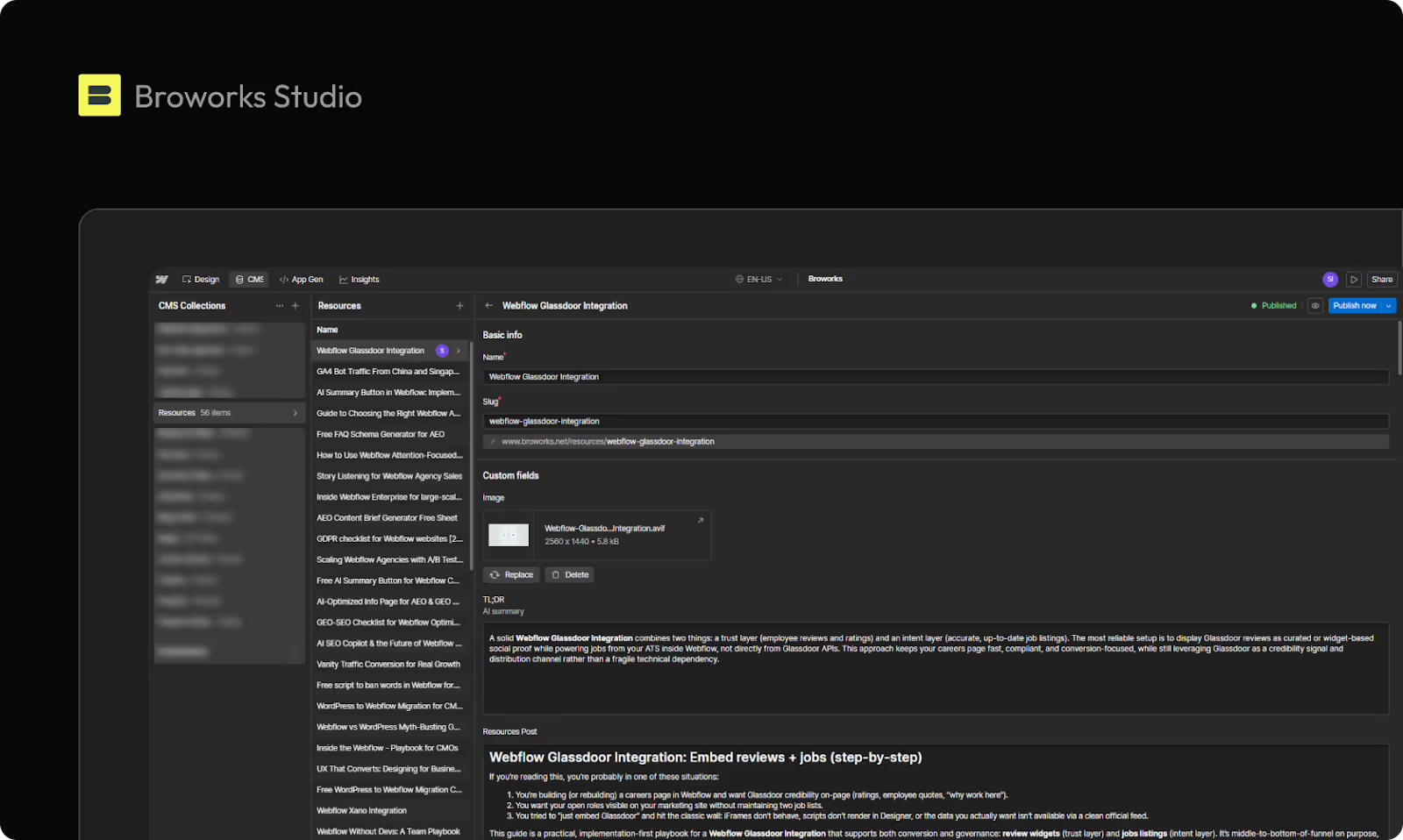
The foundation of every resource center in Webflow is the CMS collection system. Collections function as structured databases where each item shares the same field structure but contains unique content. Unlike static pages that you design individually, collection items populate dynamic templates you design once and apply to hundreds or thousands of resources.
Core Collection Structure
For a functional resource center, you typically need at least two collections working together:
1. Resources Collection (Primary)
This collection stores your actual content assets. Essential fields include:
- Resource title (plain text)
- Description or excerpt (plain text, 200–300 characters)
- Content type (option field: ebook, whitepaper, case study, video, webinar)
- Publication date (date field)
- Featured image (image field)
- Download file or external URL (link field or file upload)
- Body content (rich text, optional for longer-form resources)
- Author (reference field to Authors collection, optional)
2. Categories Collection (Taxonomy)
This separate collection defines your content taxonomy. Each category becomes a filterable dimension in your resource center. Fields include:
- Category name (plain text)
- Category description (plain text or rich text)
- Category icon or image (image field)
- URL slug (auto-generated from name)
Why Separate Collections Matter
Creating a dedicated categories collection rather than using simple option fields provides significant advantages:
- Global updates: When you rename a category, the change propagates across all resources automatically. With option fields, you'd need to manually update every affected resource.
- Category landing pages: Each category can have its own dynamic template page with custom descriptions, featured resources, and unique layouts.
- Multi-collection flexibility: The same category can be referenced from multiple collections (blog posts, resources, case studies) while maintaining consistency.
According to Webflow's documentation, collections support up to 10,000 items on Business and Enterprise plans, providing capacity for organizations with extensive content libraries accumulated over years of content marketing.
Reference Fields and Relational Architecture
Reference fields create relationships between collections, similar to foreign keys in traditional databases. In your resources collection, a category reference field links each resource to one or more categories from your categories collection.
This relational structure prevents data duplication and maintains consistency. When you update a category's name or description in the categories collection, every resource referencing that category reflects the change immediately. This architectural decision becomes increasingly valuable as your taxonomy evolves and your content library scales.
Designing Collection Templates That Scale
Template design determines both user experience and long-term maintainability. Webflow's visual designer lets you create templates that dynamically populate with CMS content while retaining precise design control.
Collection List Pages
Your main resource center page uses the Collection List element to display resources. This element connects to your CMS collection and defines how items appear in grid or list layouts.
Key implementation decisions:
- Pagination vs. Load More: Webflow limits Collection Lists to 100 items per page for performance reasons. For resource centers with extensive libraries, implement pagination or a "load more" button. Pagination is better for SEO as it creates indexable pages, while "load more" provides smoother user experience.
- Grid Responsiveness: Design grid layouts that adapt from single-column mobile views to multi-column desktop layouts using Webflow's Flexbox or Grid systems. A common pattern is 1 column on mobile, 2 columns on tablet, 3 or 4 columns on desktop.
- Empty States: Design what users see when filters return zero results. This prevents confusion and provides clear next actions.
- Loading States: If using JavaScript-based filtering, design loading indicators that appear during filter updates.
Individual Resource Template Pages
Each resource needs a dedicated template page displaying full content. Essential template components include:
- Breadcrumb navigation: Shows users their location within your content hierarchy and provides SEO benefits through internal linking structure.
- Related resources section: Dynamically displays other resources from the same category, increasing time on site and content discovery.
- Social sharing functionality: Add buttons for LinkedIn, Twitter, and email sharing using simple link structures or third-party tools.
- Download or access CTA: Make the primary action prominent whether that's downloading a PDF, watching a video, or accessing gated content.
- Structured data markup: Implement schema.org markup for articles, learning resources, or FAQs to enhance search result appearance.
Research from the Nielsen Norman Group demonstrates that well-organized resource centers significantly reduce time-to-information for users seeking self-service support, directly impacting satisfaction metrics and support ticket volume.
Implementing Filtering Systems for Discovery
Filtering transforms a basic content library into a discovery tool. While Webflow doesn't include native filtering, several approaches enable sophisticated filtering without backend development.
Finsweet CMS Filter: The Standard Solution
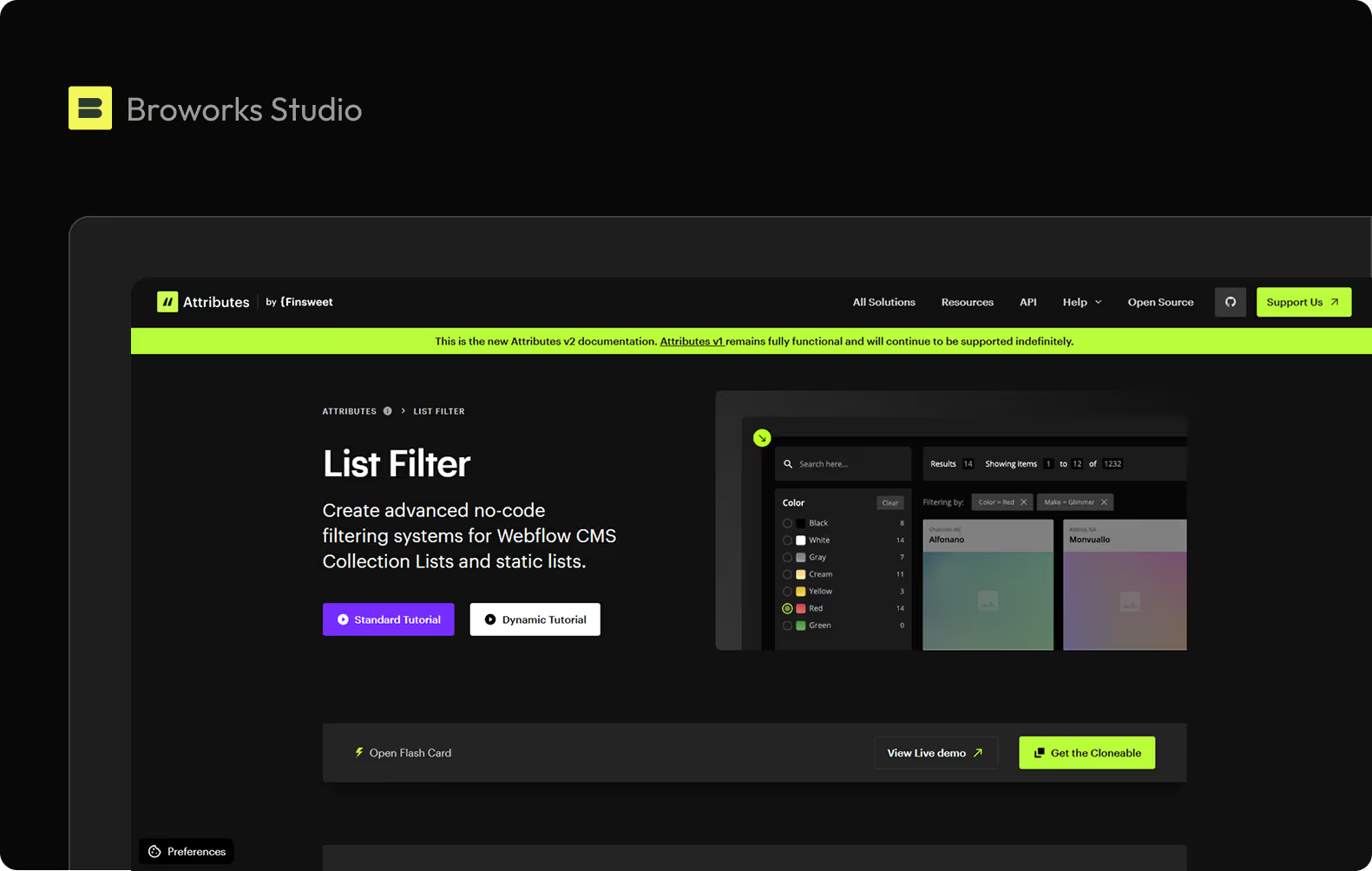
Finsweet CMS Filter is a free, open-source JavaScript library that has become the de facto standard for Webflow filtering. It adds client-side filtering to Collection Lists through custom attributes.
How it works:
- Add custom attributes to your Collection List wrapper element
- Add matching attributes to filter buttons, checkboxes, or dropdown elements
- Include the Finsweet library script in your page settings
- The library handles all filter logic, URL parameters, and UI updates
Capabilities:
- Multi-select filtering: Users select multiple categories or content types simultaneously
- Combined logic: Define AND logic (must match all criteria) or OR logic (match any criteria)
- Text search: Combine taxonomy filters with keyword search across titles and descriptions
- URL persistence: Filter states save in URL parameters, enabling bookmarking and sharing
Performance considerations: Finsweet CMS Filter works entirely client-side, meaning it loads all collection items then hides non-matching items. This performs excellently for collections under 500 items but can slow down with larger datasets. For very large collections, consider category-specific landing pages that reduce initial Collection List size.
Alternative Filtering Approaches
For most organizations, Finsweet CMS Filter provides the optimal balance. It's well-documented, actively maintained, and widely adopted in the Webflow community, ensuring you'll find support and examples.
Building Gated Resource Functionality
B2B resource centers often use gating to collect lead information before granting access to premium content. Webflow supports gating through native forms or advanced solutions like Webflow Memberships.
Native Form-Based Gating
The simplest gating approach uses Webflow's form blocks with conditional visibility:
Setup process:
- Add a boolean field called "Gated" to your resources collection
- In your collection template, add a form block requesting user information
- Add the download button or content section below the form
- Use conditional visibility to show the form when "Gated" is true and show content when "Gated" is false
- Configure form submissions to trigger email delivery via Webflow's native integration or Zapier
Limitations: This approach doesn't prevent direct URL access to files. Users can share download links directly, bypassing the form. It works best for honor-system gating where the goal is capturing interested leads rather than strict access control.
Advanced Gating with Webflow Memberships
Webflow Memberships (available on higher-tier plans) provides true content restriction with user authentication. This enables:
- Email verification: Require users to verify email addresses before accessing content
- Progressive access models: Grant access to different resource tiers based on engagement or payment
- User tracking: See which specific users accessed which resources
- Password protection: Secure premium content behind user accounts
Memberships transforms your resource center into a content platform rather than a simple library. This is particularly valuable for customer education programs, partner portals, or premium content offerings that justify subscription models.
Optimizing Performance and SEO
Performance impacts both user experience and search rankings. Resource centers face unique challenges from image-heavy layouts and extensive content libraries.
Image Optimization
Webflow automatically generates responsive image variants and serves them via CDN with automatic WebP conversion for supported browsers. However, you should still:
- Set maximum dimensions: Configure collection image field constraints to prevent 5000px+ uploads that bloat file sizes
- Enable lazy loading: Webflow enables this by default on Collection Lists, loading images only as they enter the viewport
- Use thumbnails strategically: Upload separate thumbnail versions for grid previews rather than resizing full-resolution images client-side
SEO Configuration
Each collection template includes dedicated SEO settings where you dynamically populate meta tags using collection field values.
Best practices:
- Dynamic title tags: Combine resource title with context, such as "{Resource Title} | {Content Type} | Broworks". This pattern provides keyword context while maintaining uniqueness.
- Meta description templates: Pull from resource description fields while respecting the 155-character limit. Use Webflow's character counter to prevent truncation in search results.
- Open Graph images: Automatically assign featured images to Open Graph tags for improved appearance when shared on LinkedIn, Twitter, and Slack.
- Canonical URLs: Ensure each resource has proper canonical tags to prevent duplicate content issues when resources appear in multiple category views.
According to Google's structured data guidelines, implementing schema markup significantly improves how search engines interpret and display your content, potentially earning rich results like FAQ snippets or learning resource carousels.
Resource Center Governance and Maintenance
The true test of any CMS implementation emerges during the maintenance phase. Well-architected resource centers allow marketing teams to add, update, and remove content without developer involvement while maintaining design consistency.
Content Publishing Workflows
Establish clear processes for publishing resources:
Approval processes: While Webflow lacks native approval workflows, you can enforce discipline using staging environments and Editor access controls. Configure team member permissions to prevent template modifications while allowing content publication.
Taxonomy consistency: Create documentation defining when to create new categories versus reusing existing ones. Taxonomy proliferation, creating "Marketing Automation," "Marketing Automation Tools," and "Automation for Marketing" as separate categories, is one of the most common resource center challenges.
Quality checklists: Develop pre-publish checklists covering SEO elements (meta descriptions, image alt text), design elements (featured images meeting size requirements, consistent formatting), and functional elements (working download links, correct gating configuration).
Analytics Implementation
Connect your resource center to comprehensive analytics to understand content performance:
- Event tracking: Implement Google Analytics 4 via Webflow's custom code embedding to track downloads, filter usage, and navigation patterns
- Form analytics: Monitor gated resource form completion rates to identify friction points
- Heatmaps and session recordings: Tools like Microsoft Clarity reveal how users interact with filters and navigate your content taxonomy
- Marketing automation integration: Connect form submissions to HubSpot or similar platforms for lead scoring and nurture campaigns based on resource consumption patterns
What content performs best? Track downloads, time on page, and exit rates to identify high-value resources. Use this data to inform future content creation and feature high-performing resources prominently.
Solving Common Implementation Challenges
Challenge: Filter Performance Degradation
Symptom: Slow page loads and laggy filter interactions as collection grows beyond 300–500 items.
Solution: Implement pagination to limit initial loads. Use Finsweet's load-more functionality to progressively load additional items. For collections exceeding 1,000 items, create category-specific landing pages that reduce default Collection List sizes to improve performance.
Challenge: Design Inconsistency
Symptom: Resources look different as multiple team members add content with varying formatting choices.
Solution: Create detailed style guides within Webflow's style manager. Control rich text formatting options through class-based styling. Use Editor permissions to prevent template modifications while allowing content publication. Provide training and templates for common content patterns.
Challenge: Tracking Engagement
Symptom: Inability to measure which resources drive conversions or which content types perform best.
Solution: Implement event tracking via Google Analytics 4. Use Webflow's native form analytics for gated resources. Integrate with marketing automation platforms like HubSpot for comprehensive tracking that connects resource downloads to pipeline generation and revenue attribution.
Integration Ecosystem
Resource centers rarely exist in isolation. Consider integration points with:
Marketing Automation Platforms
Connect form submissions to your marketing database for lead-nurturing campaigns based on resource downloads. HubSpot integrations enable workflow automation directly from Webflow, triggering email sequences, lead scoring updates, and CRM record enrichment based on content consumption patterns.
Customer Success Tools
Surface relevant resources inside your product interface or support portal using the Webflow API or custom integrations. When users encounter specific features or challenges, dynamically recommend educational resources that reduce support volume.
Advanced Search Platforms
For very large resource libraries (thousands of items), consider implementing Algolia or similar search services that provide more advanced capabilities than native Webflow filtering, including typo tolerance, synonym recognition, and AI-powered relevance ranking.
Analytics and Business Intelligence
Export download and behavioral data into business intelligence platforms for executive-level reporting on content performance, ROI attribution, and content gap analysis that informs future content strategy.
Migrating Existing Resource Centers to Webflow
Organizations with established resource centers on WordPress or custom platforms should approach migration systematically:
Migration Framework
1. Content AuditDocument all existing resources, metadata schemas, current URL structures, and taxonomy organization. Identify which content should migrate versus archive. This audit typically reveals 20–30% of content that's outdated or underperforming.
2. Taxonomy MappingDefine how existing categories and tags translate into Webflow collection structures. Consolidate overlapping categories and establish clear definitions for each taxonomy term.
3. URL PreservationImplement 301 redirects from old URLs to new Webflow URLs to preserve SEO value and prevent broken links. Export old URL structures, map them to new Webflow URLs, and implement redirects via Webflow's native redirect manager or external services.
4. Template ParityRebuild essential template variations before migration to avoid formatting issues. Don't migrate content before templates can properly display it.
5. Phased MigrationMigrate content in batches, by category, by content type, or by publication date. Test thoroughly after each batch before completing the transition.
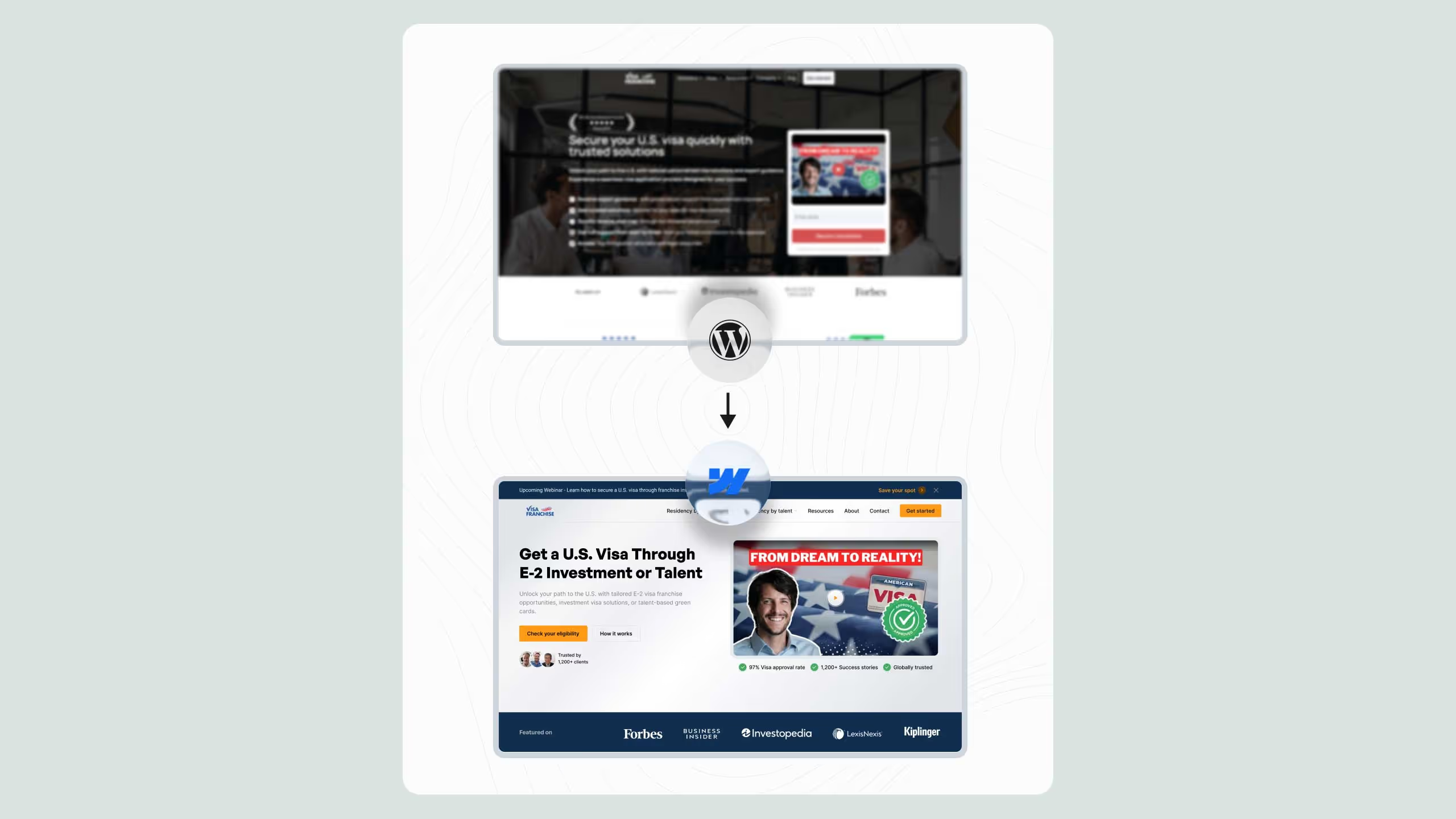
For enterprise organizations managing this transition, WordPress to Webflow migration services provide frameworks that minimize risk, preserve SEO value, and reduce downtime to hours rather than days.
Scaling Your Resource Center Over Time
As your organization grows, your resource center should evolve to support:
Personalization
Use Webflow Memberships or third-party tools to display different resource recommendations based on user role, industry, or behavioral data. Show SaaS companies different featured resources than manufacturing companies, or surface advanced content to users who've downloaded multiple beginner resources.
Multilingual Content
Implement localized resource centers for international audiences using Webflow Localization (native feature) or third-party solutions like Weglot. Create separate collection items for each language variant or use translation layers that adapt existing content.
AI-Powered Search
Integrate search platforms that understand intent beyond keyword matching, using tools like Algolia with AI-based relevance or custom implementations using OpenAI's embedding APIs to surface semantically similar content.
Content Syndication
Expose your resource library via APIs for distribution across multiple channels and platforms. Webflow's REST API allows external systems to query collection data and display resources in product interfaces, mobile apps, or partner platforms.
Webflow's flexibility allows these capabilities to be added incrementally without rebuilding your entire infrastructure. For organizations aiming to build conversion rate optimization systems, resource centers become critical tools for measurable growth through self-service education and lead nurturing.
.svg)
.svg)