Free AI Summary Button for Webflow CMS

TL;DR
Adding a free AI summary button in your Webflow CMS gives readers instant access to ChatGPT or Perplexity summaries of your articles. It’s lightweight, SEO-safe, and takes minutes to set up using link blocks, CMS fields, and a small JavaScript snippet.
The result? A modern, AI-friendly blog that improves UX, supports AEO/GEO visibility, and keeps your content aligned with the future of AI-driven search.
Free AI summary button for Webflow CMS articles
Adding a free AI summary button for Webflow CMS can transform how your audience interacts with your content. Instead of reading through a full article, users can click a button that redirects them to ChatGPT or Perplexity with a pre-written prompt that summarizes your post. This not only improves user experience but also keeps your website modern, AI-friendly, and conversion-optimized.
In this guide, I’ll show you how to implement both ChatGPT and Perplexity AI buttons in Webflow CMS by using a link block, custom attributes, and a bit of JavaScript.
Why add an AI summary button in Webflow CMS?
- Better engagement – Readers stay longer when they can quickly scan summaries before diving into full articles.
- AI-ready SEO – Future search engines will use AI summaries to rank and surface pages. Giving readers a shortcut to ChatGPT or Perplexity aligns with this trend.
- Value for marketing teams – CMOs, Marketing Directors, and content managers can test how their articles perform when summarized by AI.
Supporting keywords included: best Webflow design agency, Webflow development agency, Webflow CMS automation, AI article summary button, ChatGPT article summary, Perplexity summary integration.
Step 1: Add the link block in Webflow CMS
Inside your CMS template page:
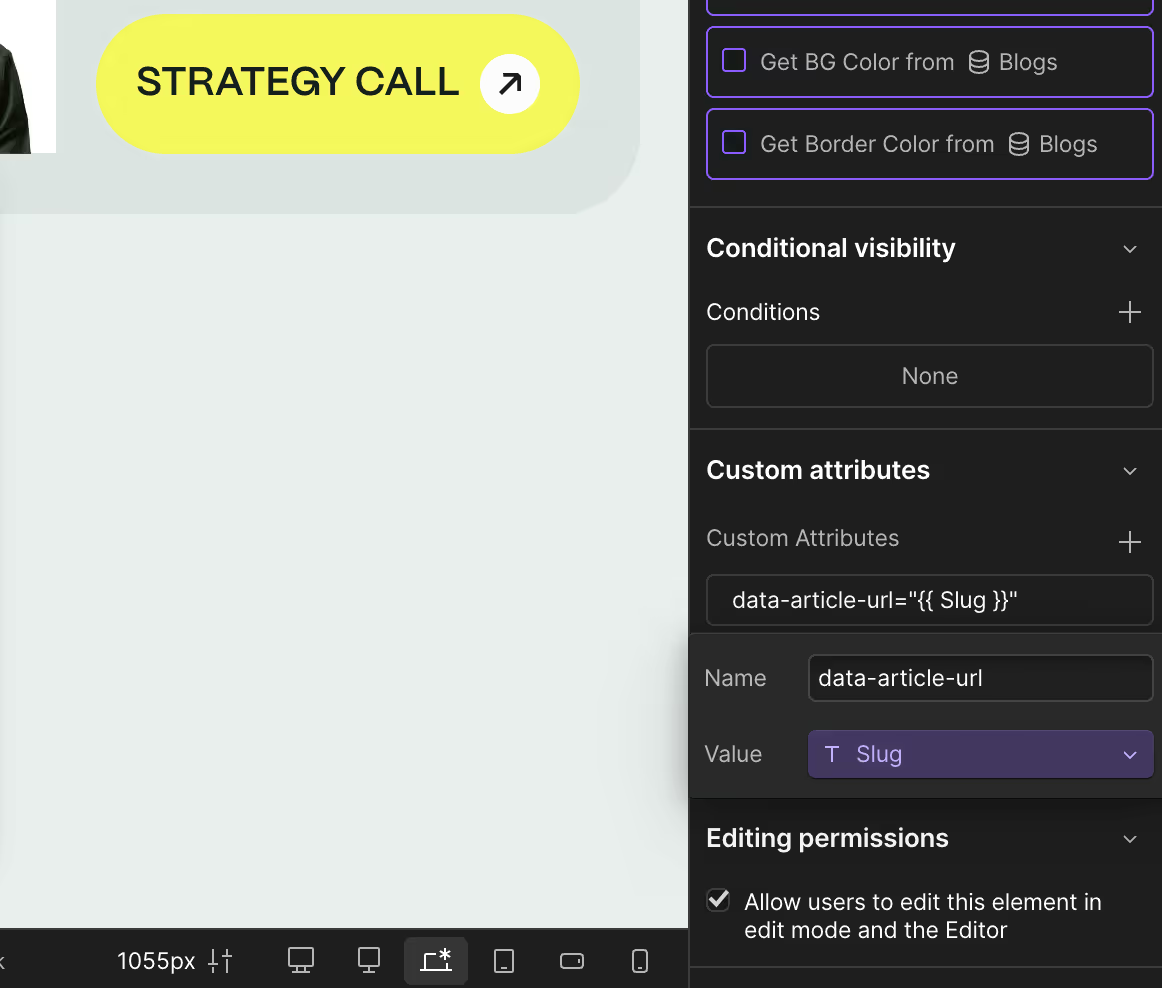
- Drag a Link Block into the article template.
- Give it the ID
chatgpt-share. - Add a custom attribute:
- Name:
data-article-url - Value:
Slug(bind it to your CMS slug field).
- Name:
- Style the link block like a button.
Step 2: Embed the ChatGPT AI summary code
Add an Embed Code Block inside the Link Block with the snippet you can get by filling up a form on the right to access the code.
What this does: Clicking the button opens ChatGPT with a ready-to-use summary prompt.
Step 3: Add the Perplexity AI summary button
Duplicate the same steps but use this snippet for Perplexity by filling up a form on the right as well.
Make sure to:
- Give the second Link Block the ID
perplexity-share. - Add the same CMS attribute
data-article-url.
Comparison: ChatGPT vs Perplexity for article summaries
Here’s how they stack up for quick AI summaries in Webflow CMS:
Final thoughts
Implementing a free AI summary button for Webflow CMS articles is an easy, high-impact improvement. By offering your readers instant access to ChatGPT or Perplexity summaries, you enhance UX, stay ahead in AI-driven SEO, and add value without slowing down your site.
Whether you’re a Webflow development agency, a marketing director, or a business owner, this resource saves time while keeping your content aligned with the future of search.
.svg)
.svg)